 Nostos
 Use Xiaohongshu folders when you only need categories inside that service. To read those saves alongside articles from other sources, use the Nostos Chrome extension to scan a favorites page you can access. Check the imported items before adding optional tags or spaces.
Choose the workflow that matches your goal
| Goal | Starting point | What to verify |
|---|---|---|
| Revisit topics inside Xiaohongshu | Use the source app’s folders first | Whether you need another library at all |
| Read alongside Zhihu and web articles | Import accessible favorites with the extension | Destination, captured body and source links |
| Continue on iPhone | Configure the matching sync route after import | Completed uploads and actual phone content |
| Keep a file backup | Inspect saved items, then use the app’s export | Required text and attachments in the files |
If “export Xiaohongshu favorites” means your entire account history or a particular file format, check that requirement first. Importing a reading library is not a complete account backup. To bring in another source, follow the Zhihu import workflow.
Choose a destination first
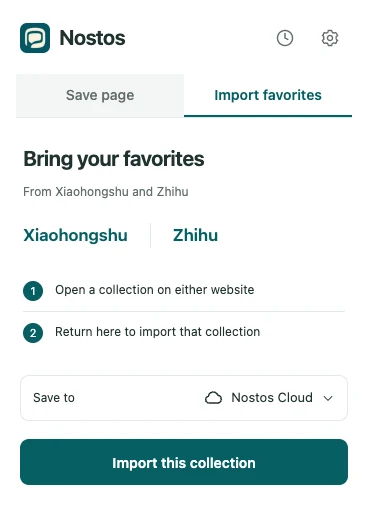
Actual extension UI with example data. Identifies controls; does not demonstrate successful source capture or upload.
Install the Nostos Chrome extension, open settings, and connect your destination. Batch favorites imports use Mac or Nostos Cloud; the current iCloud path does not import whole favorites collections. Nostos Cloud requires an account and Pro access. The Mac route requires an installed, running, paired client; check the download page and store for availability.
Which page and button to use
Open your Xiaohongshu profile’s saved/favorites view or a specific collection. The profile’s posts tab, recommendation feed and an individual note are different from a batch-import entry. The extension recognizes the saved state of a profile and dedicated collection pages. If the page is unsupported, return to the right view first.
In the extension, choose Import favorites → Save to → Import this collection. If Choose import destination appears, open it, select Nostos for Mac or Nostos Cloud in Settings and finish connecting before returning. The iCloud collection restriction is deliberate; repeated clicks will not remove it.
Check usefulness with three notes
For example, three weekend-trip notes might cover a location, a route and opening hours. Verify the author and source of each, then search for the place. Finding one note need not become a filing project; add your own tags or space when you will revisit the trip. This is an illustrative organizing example, not a report of importing real user data.
Use this checklist:
- Title or author: you can identify the intended note, not a feed.
- Source link: it opens the correct item.
- Scope: distinguish shared text, extracted body and available images.
- Destination: the item appears in the library you selected.
Interpret the result
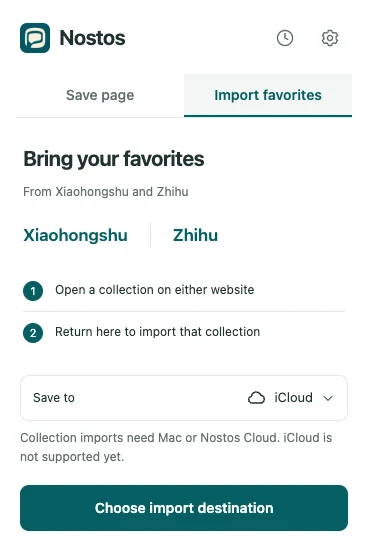
Actual extension UI with a simulated state, not a live account or upload result.
| What you see | Check first | Next action |
|---|---|---|
| Unsupported collection page | Are you in favorites or a specific collection? | Open that view and choose Import this collection |
| No favorites found | Have target rows actually loaded? | Load the source page and retry; account totals are not success counts |
| Import processed | Are items pending or failed? | Open Save activity at the top right and inspect upload progress |
| One item contains only a link | Does the original note still open? | Open it individually and use Save page |
Avoid posting source URLs containing access parameters in public support comments. Describe the page type and displayed message instead.
Is this a full Xiaohongshu export?
No. This workflow imports accessible favorites into Nostos. It is not an official account export and does not guarantee every note, hidden item or original-quality video. For one note, open it and use the single-page Save action.
Continue with reading Chrome saves on iPhone.
Only need one post from your phone? Use single-post RedNote saving without scanning a collection.