 Nostos
 Before relying on a WeChat article offline, reopen the saved item without a connection on the device you will use. Save while online, wait for processing and sync, and check both text and images. A visible title or cover does not prove that the whole article is stored locally.
Save the correct source while online
Copy the article's original link from WeChat and use the link-pasting entry when adding content in Nostos. If Nostos is available in the system share sheet, share the link there. On desktop, use Save page on an accessible article in Chrome. The WeChat capture guide covers the entry points.
If the source displays a verification, login or error page, restore normal access first. Do not treat that page as article text. For an article saved on another device, wait for the corresponding sync to reach the device you intend to read on.
Compare three text positions and a body image
Check the source's first paragraph, a middle heading and final paragraph against the saved item. These help expose previews and truncated captures. Then inspect an image from the middle of the article, including its content and order, rather than checking only the cover.
This is not a guarantee that every character or image is correct. If your use depends on several figures, code or tables, inspect those parts individually. Treat videos, embeds and external links separately: an offline article does not make every linked website available offline.
Test the device you will actually use
- Open the saved item online. Wait for the body and needed attachments, checking for processing or download failures.
- Temporarily disconnect, leave the reading page and reopen the saved item.
- Check the beginning, middle, ending and chosen image again.
- Save any linked article you also need as a separate item, then test it too.
- Reconnect to resolve failures. Until the checks pass, do not rely on this as your only copy for the trip.
Testing WeChat's original page is not testing the Nostos copy. Testing on a computer does not establish that a phone has received the attachments.
Diagnose what is actually missing
| Result | Stage to inspect | Next action |
|---|---|---|
| Only a title even while online | Whether the body was acquired | Check processing and retry parsing when the source is accessible |
| Images appear online but vanish offline | Local availability on this device | Reconnect, inspect attachments and repeat the offline test |
| The second half is missing | Whether the source was fully loaded | Check the original, then try saving its complete visible content |
| Desktop is complete, phone is not | Matching sync destination and attachment arrival | Follow the cross-device status checks |
| The original was deleted | What was captured previously | Preserve that material without promising to recover missing parts |
Missing images have several possible causes. Repeatedly generating an AI summary is not a repair: a summary processes available evidence, not missing images or text.
Reopen the text and inspect the image too
This is an original example article opened in Nostos. We imported its body and an original image into an isolated test library, quit the app, removed the import input and relaunched. The same item remained readable, and its image opened in the local image preview.
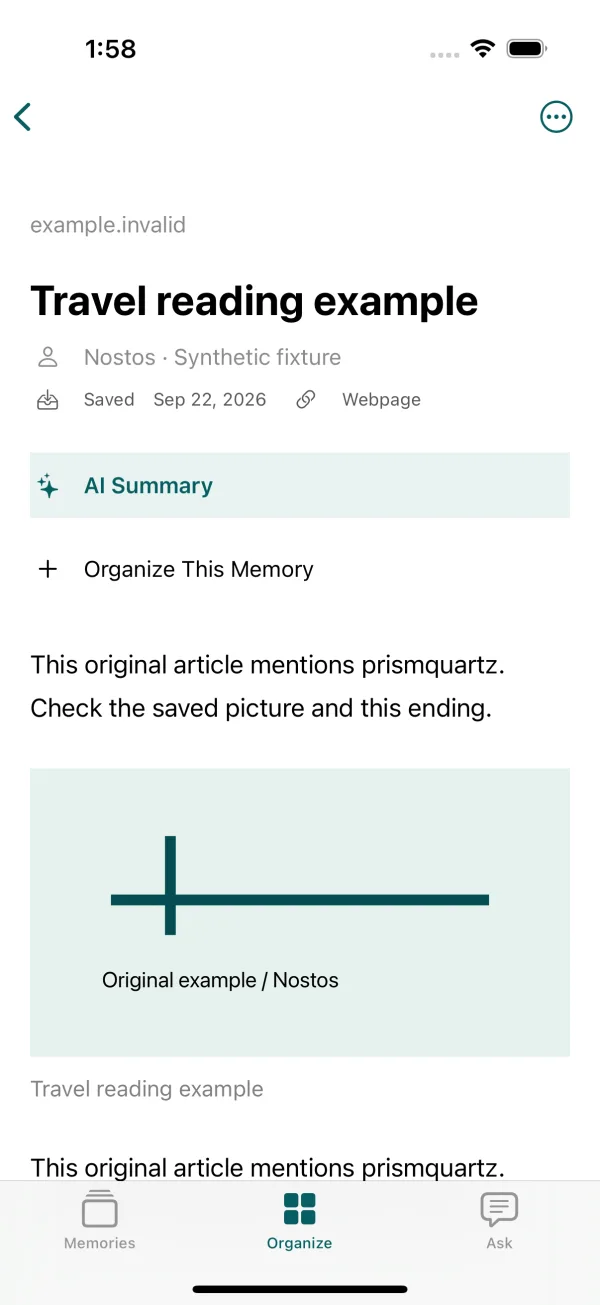
Actual iOS simulator reader in the current development build, using an original test article rather than a WeChat capture.
The check did not use an available source website or a signed-in cloud account. It verifies reopening already-stored material, not phone airplane mode or live WeChat downloading. Before traveling, run the offline steps above on your own device with the actual article you need.
Keep the source after reading
Retain the author and original link so you can check corrections, updates and context when online again. A saved copy represents the material acquired at capture time, not necessarily the latest version. For desktop capture followed by phone reading, continue with Chrome-to-iPhone checks.