 Nostos
 To read a Chrome save on iPhone, connect the extension and phone to the corresponding storage and sync setup. Save one article and verify it first. Installing the extension does not automatically sync your entire browser bookmark library.
Three controls in the extension
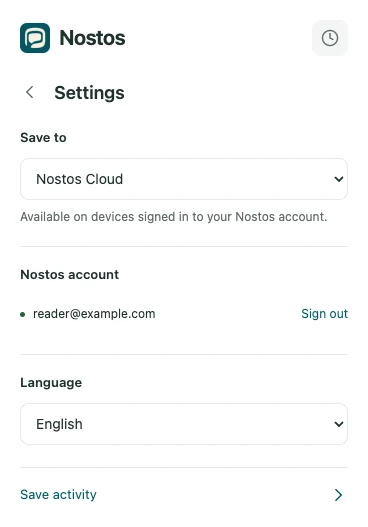
Actual extension UI with example data. Identifies controls; does not demonstrate successful source capture or upload.
The gear at the top right opens Settings. Choose Save to, complete the requested account connection or pairing, return with the back button, then choose Save page. The clock icon opens Save activity, where you can inspect unfinished uploads.
| Destination | On the computer | On the phone |
|---|---|---|
| Nostos Cloud | Matching Nostos account connected, with Pro access | Matching account and Nostos Cloud sync |
| iCloud | Extension account and iCloud authorization completed | Corresponding iCloud identity and eligible sync setup |
| Nostos for Mac | Running Mac client paired with the extension | Separate matching Mac-to-phone sync; pairing alone is not phone delivery |
For one computer-to-phone article, choose one route and verify it before changing several settings on both devices.
Save the current article in Chrome
- Open the article and confirm its body is visible.
- Click Nostos in the toolbar and save the current page.
- Check Save activity. Queued, uploading and completed are different states; after an interruption, inspect the task result.
- If you need only part of the page, select that text before saving and verify the resulting excerpt.
- ChromeSave the current page
- Matching destinationCheck connection and upload
- iPhoneSync, then verify the content
Check the item on iPhone
Confirm the matching account and sync setup, open Nostos, and allow it to sync. Find the saved title, then check the body, images and original source. A title appearing does not prove that every attachment is available locally.
Two messages with different meanings
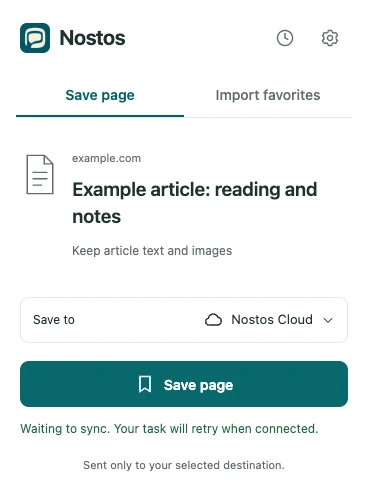
Actual extension UI with a simulated state, not a live account or upload result.
Waiting to sync. Your task will retry when connected. means an upload remains pending. Saved to Nostos Cloud. reflects a completed save response, but you should still open the item on iPhone. The pending message does not mean the phone can already read it.
Try a public page without private information. Remember its title, save it, inspect Save activity, then open the matching item on your phone. Check the body and one image separately. Only the matching cross-device result confirms that item’s reading workflow.
Troubleshoot a missing save
- Check the selected destination and account in the extension.
- Look for queued uploads, failures or a request to reconnect.
- Make sure the phone is online, Nostos is open and the corresponding sync option is enabled.
- If text arrives without media, inspect attachment status and verify that the source media still opens.
Avoid repeatedly switching destinations: that can scatter saves across libraries. Contact support with a status description that does not include private article content.
Describe a support issue precisely
Record the destination, exact extension message, whether the item appears on the phone, and whether text or attachments are affected. A redacted screenshot can help. Do not send passwords, login tokens or private article bodies.
Does this sync every Chrome bookmark?
No. This workflow saves the current page after an explicit action. It is not automatic two-way browser bookmark sync. Xiaohongshu and Zhihu collection imports use a separate workflow with different limits.
For a source platform’s collection rather than the current page, start with Xiaohongshu favorites or Zhihu collection imports. Return here to verify the phone result after importing.