 Nostos
 To keep one RedNote post for later on iPhone, copy its share link and paste it when adding content in Nostos. RedNote and Xiaohongshu refer to the same source platform in this guide. Confirm the intended post, then inspect the text and images actually acquired. You do not need to scan a whole favorites collection to save one post.
Start from the post's share menu
Open the post and check its author and cover. Find the copy-link option in RedNote's share menu; menu placement can change between versions. If the system share sheet offers Nostos directly, that is another entry. A profile URL is not a substitute for the post's own link.
Switch to Nostos, open the add-content entry and paste the link. Check that the preview or resulting item corresponds to the same post. A shared payload may contain both text and a URL, so verify the source rather than judging success from a similar-looking cover.
Locate the link field in Nostos
Choose the link-pasting entry when adding content and enter the link copied from the post. The screenshot shows only this entry, using an example address that was not submitted to RedNote. Replace it with the real link copied from your own target post; do not reuse the example identifier.
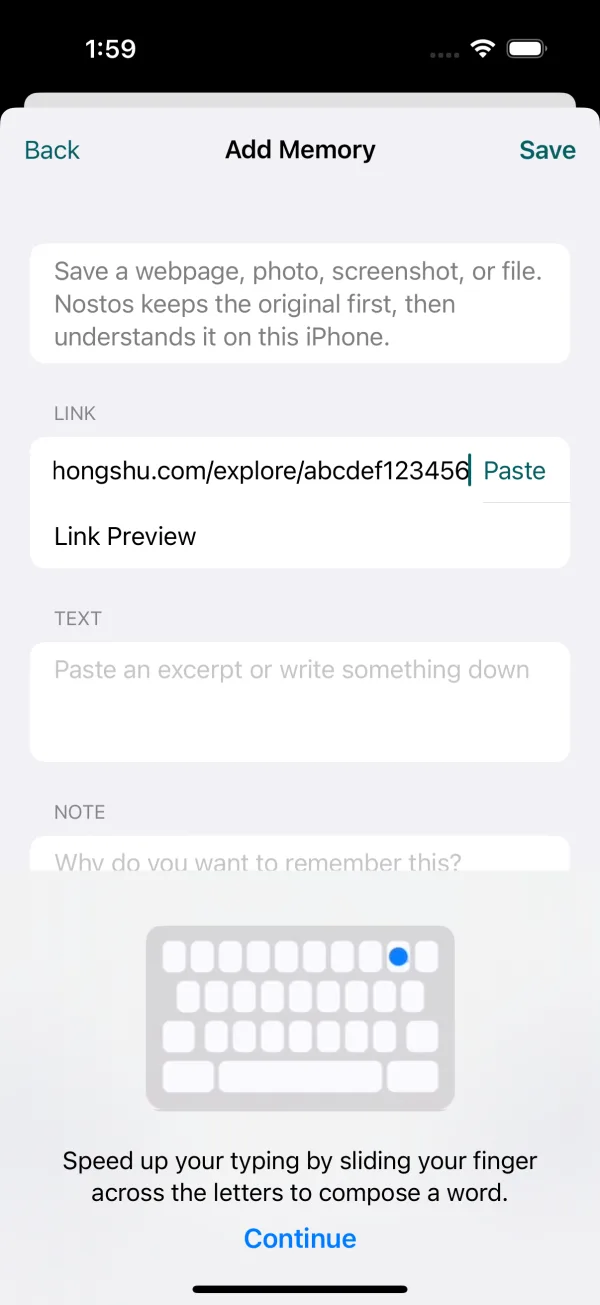
Actual development-build UI on an iOS simulator. This checks link entry only, not saving from the source platform.
Once the address is correct, save it and inspect the result using the table below. Entering a link and acquiring its full text and images are separate steps.
Decide what the saved result supports
| Available material | Useful for | Still check |
|---|---|---|
| Title and original link | Returning to the source | Whether readable text was captured |
| Readable text | Reading and searching acquired wording | Author and paragraph identity |
| Text and images | Revisiting available illustrated steps | Image order and missing essential steps |
| Video cover or description | Keeping a lead to the video | Whether playable media exists; a cover is not a recording |
For a recipe containing ingredients and step images, inspect the ingredients and compare the image order against the source. If a middle image is missing, do not ask AI to invent that step. This is a checking example, not a guarantee of complete recipe capture.
One post or a favorites collection?
Use mobile link sharing for the post in front of you. If you have accumulated many saves and want them in one library, use the desktop Xiaohongshu favorites import guide. Batch imports have destination and connection requirements; they do not automatically mirror every save made in the mobile source app.
Test one item before importing many. Decide whether you need a link back, searchable text or offline images. Each goal needs a different result check. Capturing one useful post need not start with building a filing system.
Why might an item contain only a link?
The source may not have loaded, access may be restricted, or text and media processing may still be pending. Open the post normally in RedNote, then inspect the Nostos state. Retry when the original is accessible. Deleted, hidden or account-restricted material has no guarantee of recovery.
For offline use, finish processing on this phone while connected, then disconnect and reopen the saved item to check its body and images. Availability on another device does not establish that the phone has all attachments.
Find it again later
Search for an ingredient, place or tool you know appeared in the acquired text. Open the result and check the author and original link. For visual references, see organizing inspiration across sources. When the title is forgotten, follow the clue-based recovery workflow.